








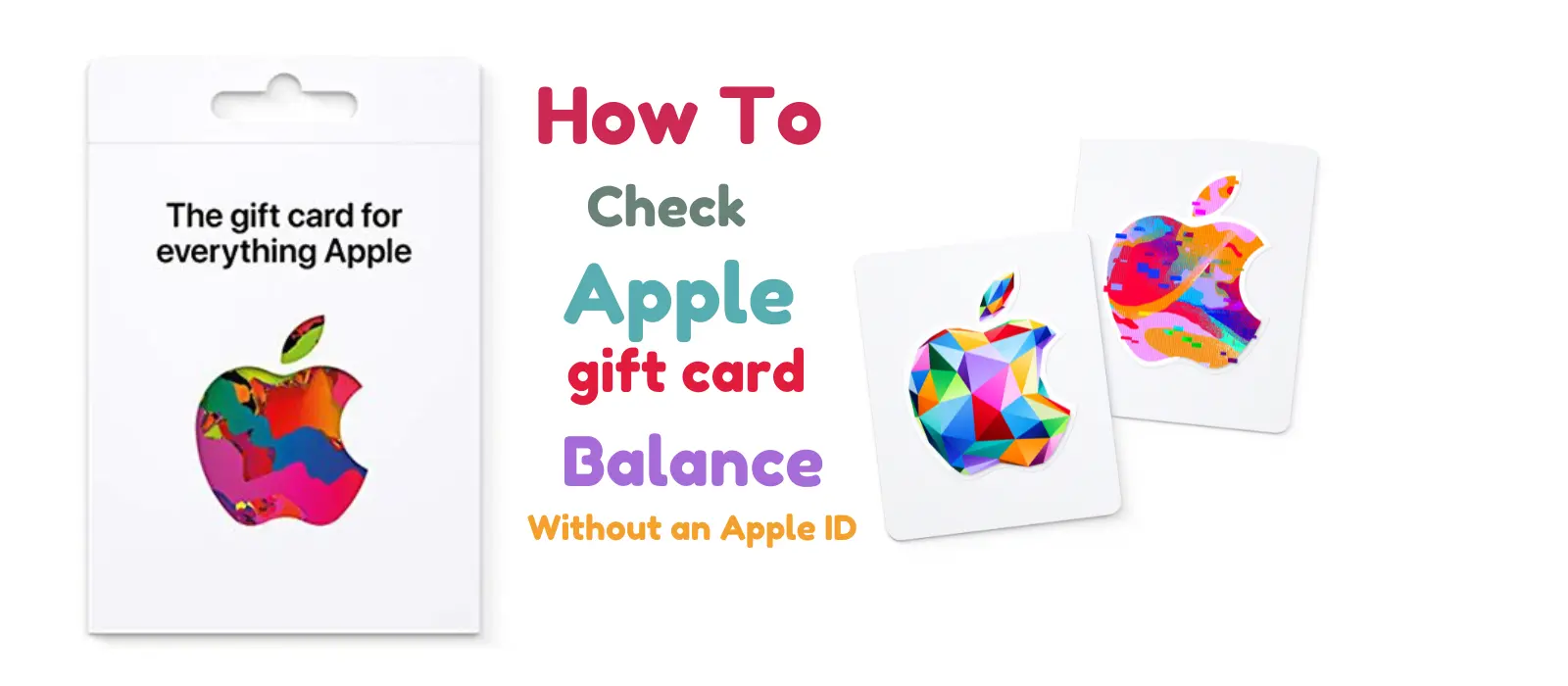
Apple gift cards are a popular and convenient way to purchase various products and services from Apple, including apps, music, movies, and more. However, there might be times when you want to check your Apple gift card balance without signing in with an Apple ID. In this blog post, we’ll walk you through the process of checking your Apple gift card balance without an Apple ID and provide some tips on how to make the most of your gift card.
How to Check apple gift card balance without redeeming
Follow this steps to Check apple gift card balance without redeeming;
-
Go to the Apple balance check page
-
Sign in your Apple ID
-
Enter your Apple gift card pin
-
Click on Check balance to see your apple gift card balance.

How to check apple gift card balance
-
Sign in your Apple ID on Apple Website
-
On the menu Click on check balance
-
Enter your Apple gift card pin
-
Click on Check balance to see your apple gift card balance.
Checking Your Apple Gift Card Balance Without an Apple ID
While most methods of checking your Apple gift card balance require signing in with an Apple ID, there is one alternative method that doesn’t require an Apple ID:
Method: Check Balance via Apple Support
-
Please note that this method may take longer than checking your balance using an Apple ID. However, it can be helpful if you don’t have an Apple ID or don’t want to sign in for any reason.
-
Visit the Apple Support website.
-
Scroll down to the bottom of the page and click on “Contact Support.”
-
Click on “Get Support” to access the support options.
-
Choose “Billing & Subscriptions” as the topic.
-
Select “Apple ID balance or credit” as the issue.
-
Click on “Email” or “Chat” to contact Apple Support.
-
When connected with an Apple Support representative, provide them with the gift card code and request a balance check. They will be able to provide you with your gift card balance without requiring an Apple ID.
How do I check my Apple gift card balance
There are several ways to check your Apple gift card balance, depending on the type of gift card you have and the device you’re using. Here are the most common methods:
Method 1: Check Balance via the App Store or iTunes Store
-
Open the App Store or iTunes Store app on your iPhone, iPad, or iPod touch.
-
Scroll down to the bottom of the main page and tap on your Apple ID. If you’re not signed in, tap “Sign In” and enter your Apple ID credentials.
-
Tap “View Apple ID” and sign in if prompted.
-
Scroll down to the “Account” section, where you’ll see your Apple gift card balance displayed.
Method 2: Check Balance on a Mac or PC
-
Open iTunes or the App Store on your Mac or PC.
-
Click on “Account” in the menu bar and select “View My Account.”
-
Sign in using your Apple ID credentials if prompted.
-
Your Apple gift card balance will be displayed in the “Apple ID Account” section.
Method 3: Check Balance on the Apple Website
-
Visit the Apple Account Management website.
-
Sign in using your Apple ID credentials.
-
Your Apple gift card balance will be displayed in the “Account” section.
Checking Your Apple Gift Card Balance on iPhone
Here’s a step-by-step guide on how to check your Apple gift card balance on your iPhone:
Method 1: Check Balance via the App Store
-
Open the iTunes Store app on your iPhone.
-
Scroll down to the bottom of the main page and tap on your Apple ID. If you’re not signed in, tap “Sign In” and enter your Apple ID credentials.
-
Tap “View Apple ID” and sign in if prompted.
-
Scroll down to the “Account” section, where you’ll see your Apple gift card balance displayed.
Method 2: Check Balance via iTunes Store
-
Open the App Store app on your iPhone.
-
Scroll down to the bottom of the main page and tap on your Apple ID. If you’re not signed in, tap “Sign In” and enter your Apple ID credentials.
-
Tap “View Apple ID” and sign in if prompted.
-
Scroll down to the “Account” section, where you’ll see your Apple gift card balance displayed.
Different Ways to Use Apple Gift Cards
Apple Gift Cards are incredibly versatile and can be used for much more than just app purchases. Whether you’re an Apple fan or just received a card as a gift, here are some popular ways to use them:
-
Purchase Apple Products: You can use your gift card to buy Apple devices like iPhones, iPads, MacBooks, and accessories either online or in-store.
-
App Store & iTunes: Apple Gift Cards are perfect for buying apps, games, music, movies, TV shows, and books from the App Store or iTunes.
-
Subscriptions: Use your gift card to pay for popular Apple services like Apple Music, Apple TV+, Apple Arcade, iCloud storage, and more.
-
Apple Services: Apple Gift Cards can be used for additional services like AppleCare, Apple News+, and even in-app purchases.
These cards are super flexible and can be redeemed online, through your Apple account, or at Apple stores.
Common Issues When Redeeming Apple Gift Cards and How to Resolve Them
Sometimes, redeeming an Apple Gift Card isn’t as smooth as you’d hope. Here are a few common problems and how you can easily fix them:
-
Invalid Code Error: Double-check that you’re entering the correct 16-digit code, usually starting with an “X.” If it’s a physical card, make sure the scratch-off coating is fully removed.
Fix: If the code still doesn’t work, it might have already been redeemed. You can check your Apple ID balance to see if the funds have been added.
-
Card Not Activated: Occasionally, gift cards are not activated at the point of sale.
Fix: Go back to the store where you bought the card and ask them to activate it or provide a receipt of purchase for proof.
-
Region Issues: Apple Gift Cards are region-specific, meaning you can’t redeem a card purchased in one country for use in another.
Fix: Make sure you’re using the card in the correct country’s App Store or Apple account.
-
Account Problems: If you get an error message that says you can’t redeem the card, it could be an issue with your Apple ID, such as being locked or flagged for unusual activity.
Fix: Try signing out and back into your account. If the issue persists, contact Apple Support for assistance.
If you’re still having trouble, Apple’s support team can usually help troubleshoot the problem or guide you through the steps of resolving it.
Conclusion
Checking your Apple gift card balance without an Apple ID is possible through Apple Support, although it may take longer than using an Apple ID. By following the tips provided in this blog post, you can ensure that you’re making the most of your Apple gift card and enjoying all the fantastic content and services that Apple has to offer. Happy shopping!